
Teaching RSS example · 1 episode
The Budget Podcast Lab
Understanding a podcast RSS feed
40.96 seconds · mono MP3, 128 kb/s · 656.41 kB
Publishing & distribution
Understand the host’s role and RSS for Spotify and Apple Podcasts, then explore a teaching example with its narration and downloadable files.
To publish a podcast, the host stores the audio files and provides an RSS feed that platforms read. Spotify for Creators creates this feed after the first published episode; Apple Podcasts needs a separate submission. The workshop then offers original narration about RSS, with downloadable audio and an example feed. You can explore them without an account or your own podcast; no import or submission to directories has been performed.
You need a show title, a description, a language, a category, artwork and at least one episode. Also prepare episode titles and descriptions, an explicit content label if needed, and the rights to the material you distribute. A trailer can introduce the project before the first interview.
For Apple, show artwork must be square, in JPG or PNG format, with no transparency. Apple recommends 3,000 × 3,000 pixels and accepts dimensions from 1,400 × 1,400 to 3,000 × 3,000 pixels via RSS. Keep the title readable at a small size.
The workshop below lets you hear original narration about RSS and explore its audio file, artwork and example XML feed. The script, audio and feed are hosted on this website and available to download. This teaching example is separate from the Audacity exercise and needs neither your own podcast nor an account. It has not been imported or submitted to directories: do not submit this lab feed as your own show.
The Spotify and Apple procedures below use official help pages checked on October 15, 2026. No import or submission was performed in those services for this example; no account screenshot is presented as proof. Menus may vary with the language and version of the interface.
Your podcast has three types of address, each with a different role. Prepare your show with a hosting provider, then connect its feed to the directories you want to use. For subsequent episodes, return to that host: you do not register the show again every time you publish.
Everything you need to practise, even if you do not have a podcast yet.
Understand what you will submit to podcast directories. Explore one real example XML file, its cover and its audio before creating an account.
Understanding a podcast RSS feed
40.96 seconds · mono MP3, 128 kb/s · 656.41 kB
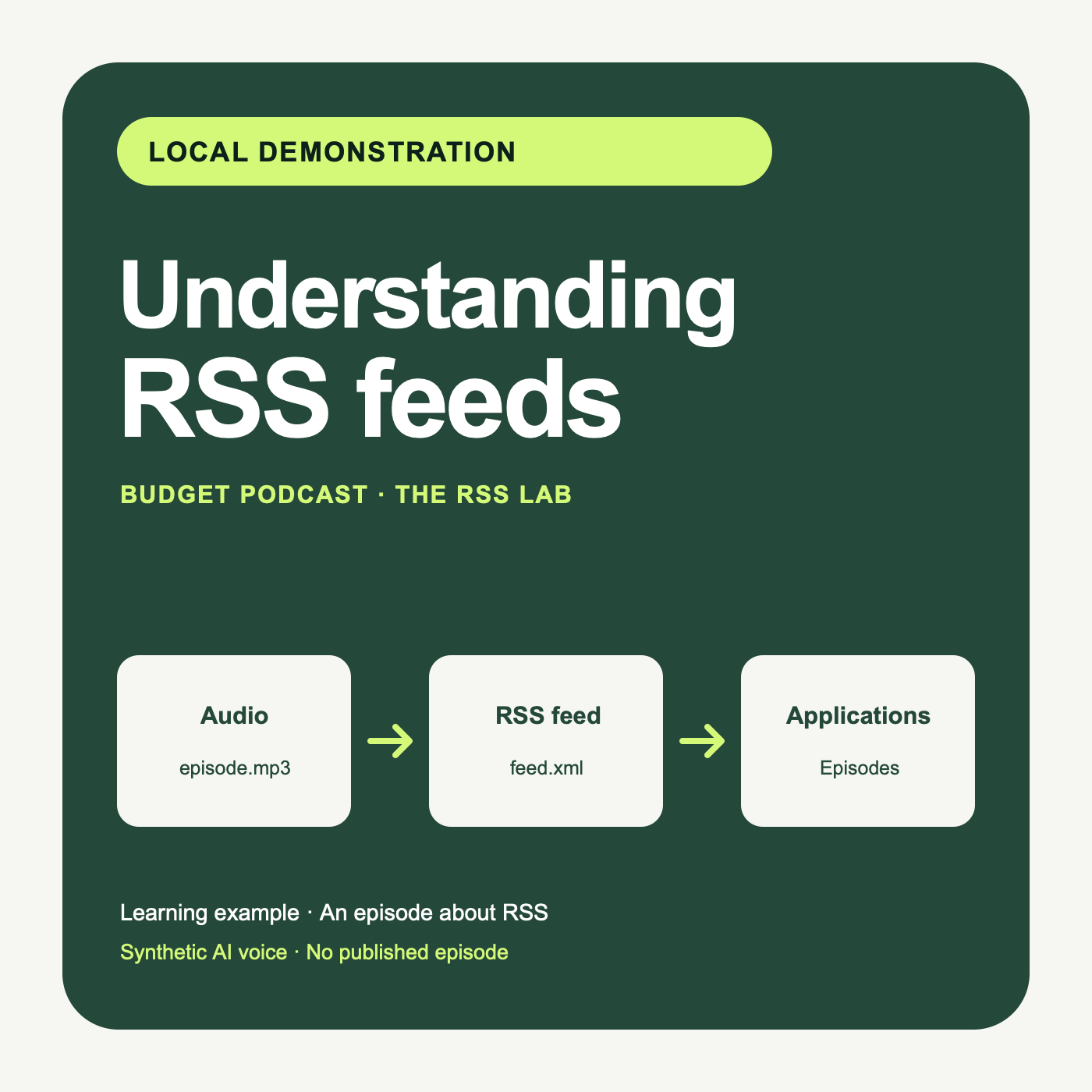
A separate learning episode explaining what an RSS feed contains, the enclosure audio link, the roles of a podcast host and directories, and the limits of localhost addresses. Synthetic voice. The narration was created for a local workshop; the files are now hosted on Budget Podcast. Do not submit this example feed to directories.
AI-generated audio · Audio credits
Audio created for a local workshop. The files in this example are now hosted on this website so you can explore them. Do not submit this lab feed to podcast directories.
Open the XML and find the channel title and description. These identify the show. The cover is a separate image file linked from the feed.
CheckpointYou can match the show title and cover to the reader above.
Find the item element: it describes one episode. Its enclosure element points to the MP3; the guid gives that episode a stable identifier. The XML lists the episode, while the MP3 contains the sound.
CheckpointDownload and play the MP3. You hear the same episode as in the reader.
The links in this example point to files hosted on Budget Podcast. For your own show, use the RSS feed supplied by your podcast host, with your audio, artwork and show information. A localhost address works only on the computer running its local server; external platforms cannot retrieve it. Publicly accessible files do not mean that a feed has been submitted to or validated by a directory.
You submit the public RSS feed URL supplied by your host for your own show. An MP3 download, an Audacity project or a Spotify listening-page link does not replace this feed. Keep our example XML for practice; do not submit it.
The next steps use the Spotify for Creators and Apple Podcasts Connect websites. They require the appropriate signed-in account, a public RSS feed and ownership checks. These are podcast management tools; opening the Spotify or Apple Music player is unnecessary for this exercise.
This teaching example has not been imported or submitted to Spotify, Apple Podcasts or YouTube. The official steps below are a preparation guide; they are not evidence of a completed submission.
This documented process applies to a show hosted by Spotify for Creators. It requires a Spotify account and the creators.spotify.com web dashboard; the Spotify music player is not needed. For a real new show, the documented option is Create a new show.
A file that has been uploaded or saved as a draft is not yet available to listeners. If the upload fails, play the file on your computer and check its format.
Spotify creates the RSS feed after you publish the first episode. In the English web interface, open Settings → Availability, then RSS Distribution: the availability and RSS distribution settings. Enable the feed for external platforms, then copy its URL.
Enabling the feed makes its email address public. Choose a dedicated address that you check. Enabling the feed does not automatically submit your show to Apple Podcasts: continue with the Apple process below.
You can keep your current host. The process for an external show in Spotify for Creators lets you either add it to Spotify or claim management access if it is already listed there.
Do not create a second show with the same episodes to work around a claiming problem. Check the feed address and whether the show exists in the directory. If it has already been claimed, ask its current administrator for access.
The Spotify page link is not an RSS feed, even though Spotify accepts it in the claiming process. Apple requires the full RSS feed URL, rather than your Spotify page or your promotional website.
For a free podcast distributed via RSS, use Apple Podcasts Connect in a browser. The local exercise needs no account. A real submission requires an active Apple Account with two-factor authentication, a configured Podcasts Connect account and a public feed. The following documented procedure was not performed for this preview:
These labels come from the English Apple documentation. Their translations may vary with the account language. A technically valid feed does not, by itself, guarantee approval.
An Apple Account managed by an organisation is not accepted. The activation documentation also asks for a valid payment method and acceptance of Apple Media Services terms; it states that no charge is made until a purchase. Activation can be completed in a browser without opening Apple Music. No account, payment method or access setting was created or changed for this preview.
Distributing a free podcast via RSS does not require joining the paid Apple Podcasters Program, which is intended for subscriptions among other uses. Audio distributed in the RSS feed must meet Apple’s requirements, including MP3 or AAC: a format accepted for upload by the host is not necessarily the format served in the feed.
If you generate the narration with a synthetic voice, disclose it in the audio. For an Apple submission, rule 1.11 requires disclosure in the content and in the metadata for the show and every episode. Keep the credits and rights for the files actually generated too. This local example has not been submitted to or approved by Apple.
Spotify warns that the email address included in an enabled RSS feed becomes public. Use a dedicated, accessible address for verification. Once the platforms are connected to the feed, publish subsequent episodes through the host: the directories retrieve them without you having to recreate the show.
Updates can take time. Check the status in each dashboard and open the public links before announcing availability everywhere. No universal timeframe for initial approval or ranking within the apps can be guaranteed.
Follow this troubleshooting order rather than deleting and recreating your show.
| What you see | What to check | Where to fix it |
|---|---|---|
| No RSS feed on Spotify | Has a first episode actually been published? | Spotify for Creators, then availability settings |
| The Spotify code does not arrive | Which address is in the RSS feed? Also check your spam folder. | The host and the email account associated with the feed |
| Apple cannot access the feed or audio | Are the RSS feed, media and artwork publicly accessible? | The host; provide the exact error |
| Apple does not detect any episodes | Does a published episode have a valid audio link in the feed? | The host; do not create a second show |
| Apple cannot read the RSS feed | Is there an XML error or missing required information? | The host or the tool generating the RSS feed |
| One episode is missing | Is its audio address unique? Apple ignores repeated media URLs. | The host |
| The Apple show exists, but is not in your account | Do you need to claim it rather than submit it again? | Apple’s show claiming process |
Apple requires, among other things, servers that support HTTP HEAD requests and byte-range requests for media access. With managed podcast hosting, you normally do not need to configure this yourself: send the full error message to support.
If an episode is visible on only one platform, check that the other has received and accepted the show, then check its status, scheduled date and RSS feed. Avoid announcing availability everywhere before opening the public links.
Guide updated on 16 October 2026. Check the sources below: plans and interfaces may change.